

How to Track Conversions in Google Ads Step by Step
Conversion tracking is the backbone of every successful Google Ads campaign. Without it, you are essentially flying blind. You might see clicks and impressions, but you have no idea which of those interactions actually turn into customers. Tracking conversions allows you to see exactly how people respond to your ads and which campaigns are generating real results. Whether your goal is sales, leads, calls, or sign-ups, proper tracking ensures that every decision you make is based on real data rather than assumptions. In this guide, you will learn what conversions are, why they matter, and how to set up and track them correctly in Google Ads.
What Is a Conversion
A conversion is any meaningful action someone takes after clicking your ad. It could be a purchase, a contact form submission, a phone call, or even a newsletter signup. Different businesses define conversions in different ways depending on their goals. An ecommerce store might focus on transactions, while a service-based business might track inquiries or quote requests. By tracking conversions, you can measure how effectively your ads generate valuable customer actions. According to Google Ads Help, conversion tracking gives you the data you need to optimize your campaigns, set smart bids, and improve your return on investment.
Why Conversion Tracking Matters
Without conversion tracking, you can only see surface-level data like clicks and impressions. While those metrics show activity, they do not show profitability. Conversion tracking helps you:
Understand which keywords and ads generate leads or sales.
Identify low-performing campaigns and reallocate your budget.
Measure the return on investment for every dollar spent.
Enable automated bidding strategies like Target CPA or Target ROAS.
Once you have accurate conversion data, every decision becomes more informed and impactful.
Types of Conversions You Can Track
Google Ads offers several conversion tracking options, and choosing the right ones is critical. Not all conversions are equal—tracking too many low-value actions can confuse optimization, while tracking the wrong actions can mislead bidding strategies. The goal is to track actions that directly reflect business value, not just engagement.
1. Website Conversions
Website conversions are the most common and include actions such as form submissions, purchases, account sign-ups, downloads, or demo requests. These conversions happen directly on your website and are usually the primary signal Google uses to optimize campaigns. For lead-based businesses, this might be a completed contact form. For ecommerce brands, it’s typically a purchase or checkout completion. These conversions should represent a clear moment of intent, not passive behavior like page views or time on site.
2. Phone Call Conversions
Phone call conversions are especially important for service-based and local businesses. Google Ads allows you to track calls made directly from call extensions in your ads, as well as calls initiated from your website when users click a phone number. These conversions help you understand which campaigns and keywords are driving real conversations—not just clicks. When configured correctly, call tracking provides strong intent signals and often results in higher-quality leads than form fills alone.
3. App Conversions
If your business has a mobile app, app conversion tracking allows you to measure installs, in-app purchases, subscriptions, or specific user actions such as completing a level or booking a service. These conversions help optimize campaigns for user quality rather than just download volume. App conversions are particularly valuable when scaling mobile-focused campaigns, as they allow Google to prioritize users who are more likely to engage or spend within the app.
4. Offline Conversions
Offline conversions capture actions that start online but finish offline, such as in-store purchases, signed contracts, or phone bookings completed after an initial inquiry. For example, a user might click an ad, submit a form, and later close a deal with a sales representative. By importing offline conversions into Google Ads, you give the platform visibility into which clicks actually produce revenue. This is especially important for high-ticket services, B2B sales, and industries with longer sales cycles.
5. Importing Conversions from Analytics
Google Ads can be connected to Google Analytics or GA4 to import conversion events. This allows you to use analytics-based goals—such as completed forms, purchases, or custom events—as conversion signals in Google Ads. Importing conversions provides a more holistic view of user behavior and helps unify reporting across platforms. However, it’s important to ensure these imported events align with real business outcomes so optimization remains focused on value, not noise.
Step 1: Define What You Want to Measure
Before setting up conversion tracking, decide which actions matter most to your business. Ask yourself:
What does success look like for this campaign?
Do I want more leads, sales, or calls?
Which actions truly indicate customer intent?
Choosing the right conversions helps you focus on meaningful results rather than vanity metrics.
Step 2: Set Up Conversion Tracking in Google Ads
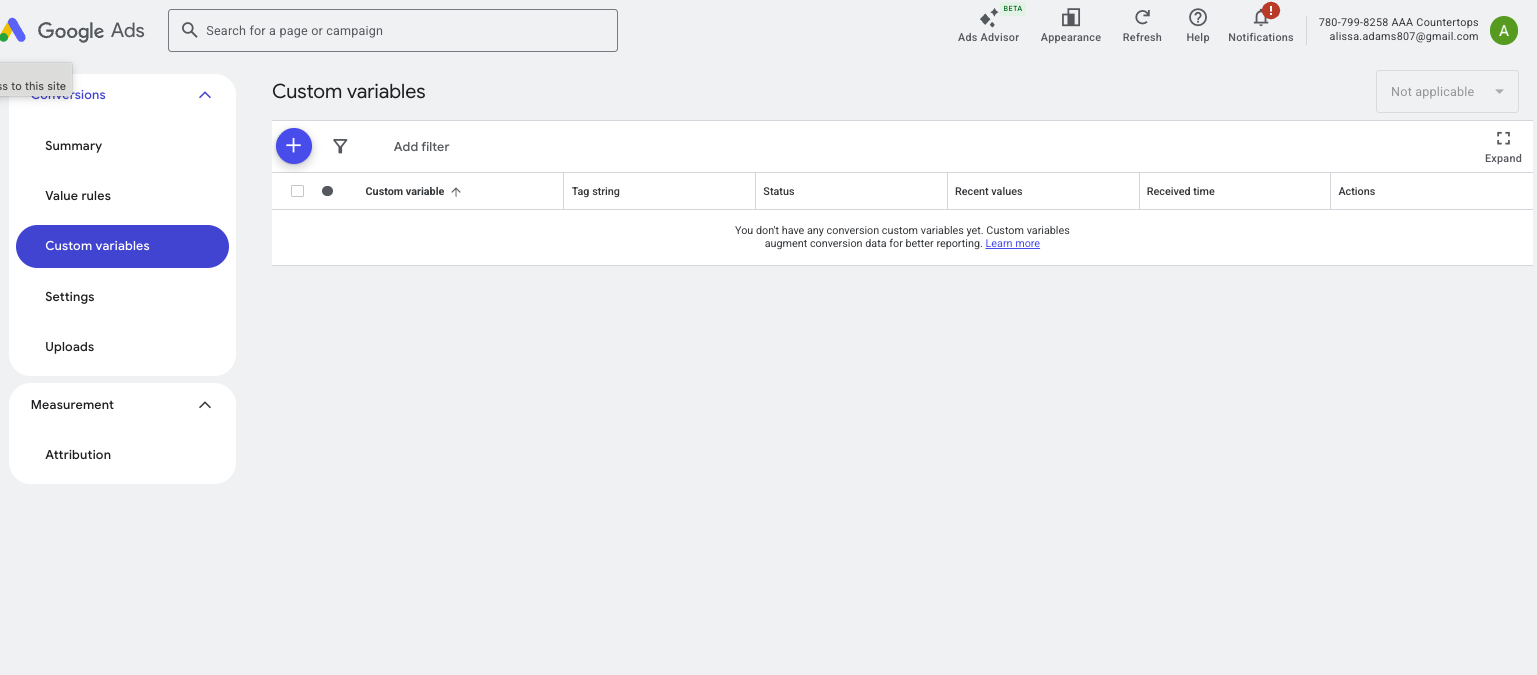
Once your goals are clear, you can create a conversion action directly in your Google Ads account.
Log in to Google Ads.
Click on Tools and Settings, then select Conversions under the Measurement section.
Click the plus button to create a new conversion.
Choose the type of conversion you want to track, such as Website, App, Phone Calls, or Import.
Follow the prompts to define your conversion name, value, and counting method.
For website conversions, you will get a snippet of code known as a conversion tag.
Step 3: Add the Conversion Tag to Your Website
After you create a conversion action, Google Ads provides a tracking tag that must be placed on your website. You can install it in one of two ways:
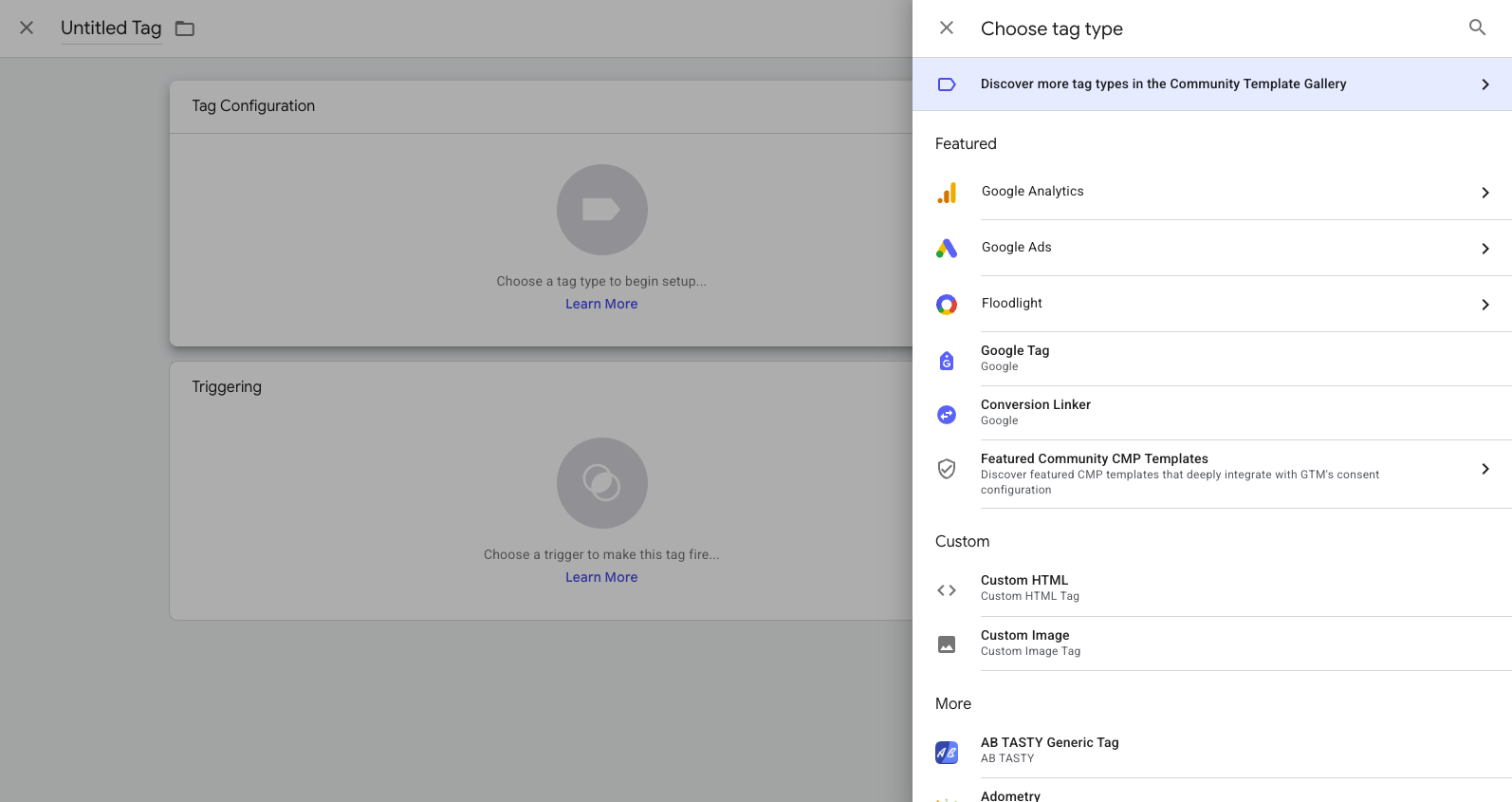
Option 1: Using Google Tag Manager: If you already use Google Tag Manager, this is the easiest method.
Open Tag Manager and create a new tag.
Choose Google Ads Conversion Tracking as the tag type.
Enter the conversion ID and label provided in Google Ads.
Set a trigger to fire on the thank-you or confirmation page that appears after a conversion.
Publish your changes.
Option 2: Manual Installation: If you are not using Tag Manager, you can add the tag directly to your website’s code.
Copy the code snippet from Google Ads.
Paste it before the closing </head> tag of your confirmation page.
This code sends information to Google each time a user completes a conversion.

Step 4: Verify That Tracking Works
After installing the tag, it is crucial to verify that it is working correctly. You can use the Tag Assistant Chrome extension or the Google Tag Assistant Companion tool to confirm that your tags are firing properly. In Google Ads, the Status column under the Conversions tab will show whether your tag is active. It may take a few hours for the first data to appear. Testing your setup before launching large campaigns ensures your data will be reliable from day one. If you run into the error above, we’d be happy to help you setup your Google Tag. Schedule a complimentary campaign audit here.
Step 5: Link Google Ads with Google Analytics
Linking Google Ads with Google Analytics gives you a fuller picture of user behavior after a click. To link the two accounts:
In Google Ads, click Tools and Settings and select Linked Accounts.
Choose Google Analytics (GA4).
Select your property and click Link.
Once linked, you can import goals or events from Analytics into Google Ads for more advanced conversion reporting. This integration helps identify which ads bring the highest quality traffic, not just the most clicks. For a detailed walkthrough, Search Engine Land offers a helpful explanation of how linking Analytics improves campaign insights.
Step 6: Use Enhanced Conversions
Enhanced conversions improve tracking accuracy by sending hashed customer data, such as email or phone number, securely to Google when a user completes a conversion. This feature helps maintain accuracy even as cookies become less reliable. To enable enhanced conversions:
Go to Conversions in Google Ads.
Edit your conversion action.
Turn on Enhanced Conversions and follow the setup instructions.
Enhanced conversions increase the accuracy of conversion data and improve the performance of automated bidding strategies.
Step 7: Monitor Conversion Data Regularly
Once your tracking is active, review your conversion data frequently. Look for trends such as:
Which keywords drive the most conversions
Which devices or locations perform best
Which times of day bring higher conversion rates
Regular monitoring allows you to adjust bids, budgets, and ad copy to improve ROI continuously.
Step 8: Track Micro Conversions
Not every conversion needs to be a sale or lead. Micro conversions such as email signups, PDF downloads, or video views provide valuable insight into how users engage with your site before buying. Tracking smaller actions helps identify where people drop off and how to nurture them toward a full conversion. Over time, micro conversion data can guide better remarketing and customer journey optimization.
Common Tracking Mistakes to Avoid
Many advertisers set up conversion tracking incorrectly or inconsistently. Avoid these common issues:
Placing the tag on the wrong page
Always place it on the confirmation or thank-you page, not the form page.Not testing after installation
A missing or broken tag means lost data. Always verify functionality.Tracking the wrong actions
Focus on meaningful conversions, not every click or view.Forgetting to assign conversion values
Assigning a dollar value helps measure true ROI.Neglecting privacy compliance
Always follow data protection laws and provide consent options.
Avoiding these mistakes ensures your tracking remains accurate and compliant.
Using Conversion Data to Improve Campaigns
Once you start collecting conversion data, use it to guide future strategy.
Identify top-performing keywords and allocate more budget there.
Pause ads that generate clicks but no conversions.
Adjust your messaging to match the intent behind converting users.
Use automated bidding strategies like Target CPA or Target ROAS once you have enough data.
Conversion data is the foundation of every optimization decision.
Why Partnering with Experts Helps
Setting up and maintaining accurate conversion tracking can be complex, especially when multiple campaigns, platforms, and tracking tools are involved. At Cristanta Digital Marketing, we help businesses build campaigns grounded in accurate data. Our team sets up conversion tracking, monitors performance, and uses those insights to make campaigns more efficient and profitable. If you want to ensure every click you pay for leads to measurable results, visit our Paid Advertising Services page to see how we can help.
Conclusion
Conversion tracking transforms guesswork into strategy. It turns data into clarity and helps you see exactly which campaigns drive growth. By following the steps in this guide, you will be able to track every meaningful action, understand customer behavior, and make smarter decisions about where to invest your budget. The most successful advertisers are not those who spend the most money, but those who measure and refine their efforts continuously. Accurate conversion tracking ensures every dollar you spend in Google Ads brings you closer to your business goals.